
The Widget Explorer Is Here: Organize Bookmarks Faster, Smarter, Better
The Widget Explorer lets you quickly edit or organize your bookmarks without juggling different tabs or pages. It also offers a new home to the Inbox, where your unsorted bookmarks live. Now you can stay organized with ease. We also introduce a Notes widget explorer for a faster editing and switching experience.
In this article, you’ll learn all about it!
Introducing the Widget Explorer
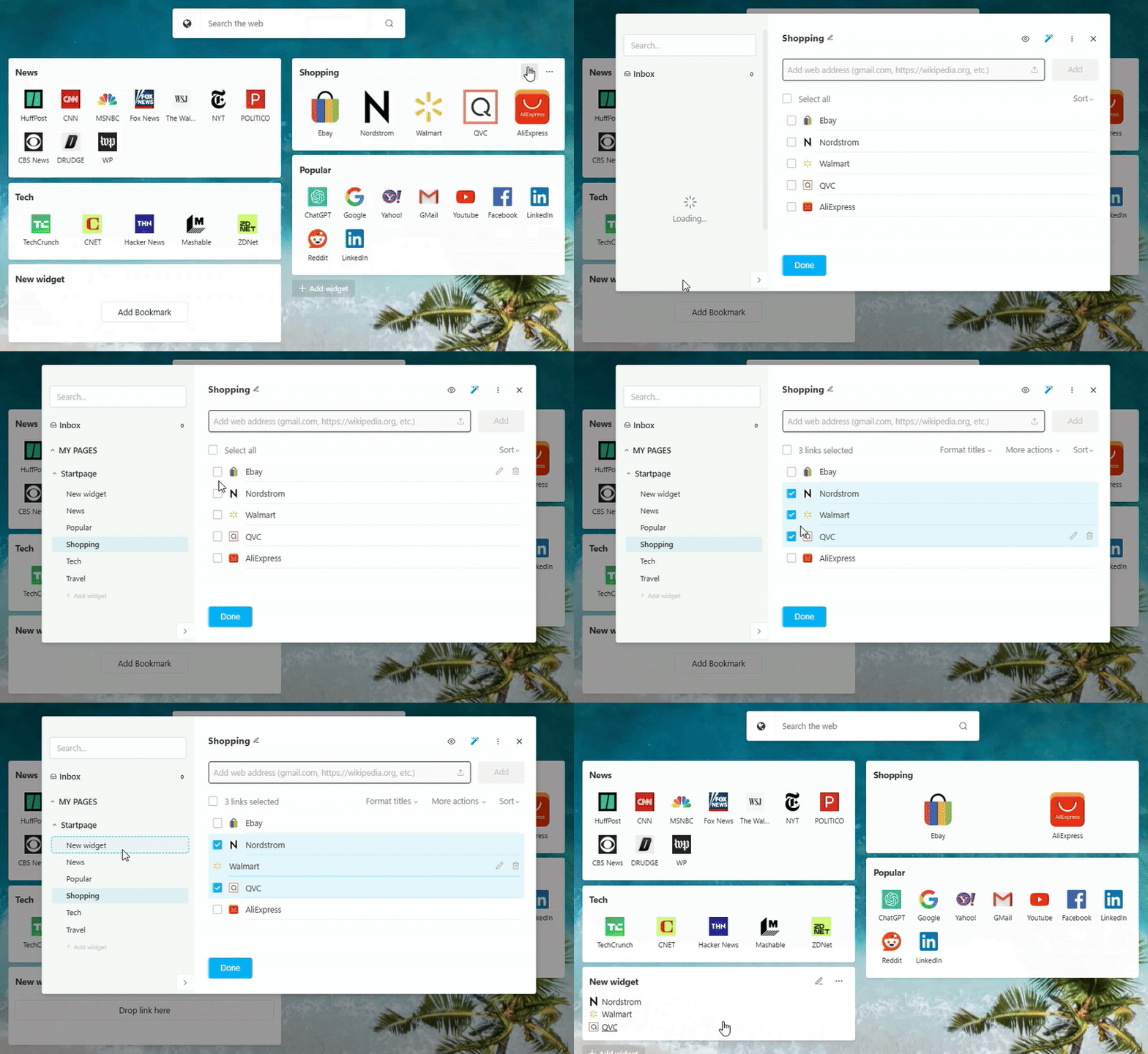
Navigating your pages is now a lot easier. We’ve retired the View all bookmarks view in favor of the fully integrated and more versatile Widget Explorer. The main challenge with the old start.me/bookmarks page was that it functioned as a standalone section, taking users away from their actual Start page with widgets. Since the Start page is our core product — and what makes Start.me truly unique — we wanted to integrate editing and organizational tools more closely into that experience.
As of today, you can move several bookmarks simultaneously, without repeatedly opening and closing widgets. Just drag and drop them wherever you want. You can easily search for widgets on other pages, open the Inbox, and more.
Widget Explorer Instructions
- To open the Widget Explorer, go to the header of any Bookmark widget.
- When the pencil icon appears, click it to open the familiar Bookmark edit window.
- At the bottom of this window, you’ll see a new arrow icon. Click it to expand the Widget Explorer.
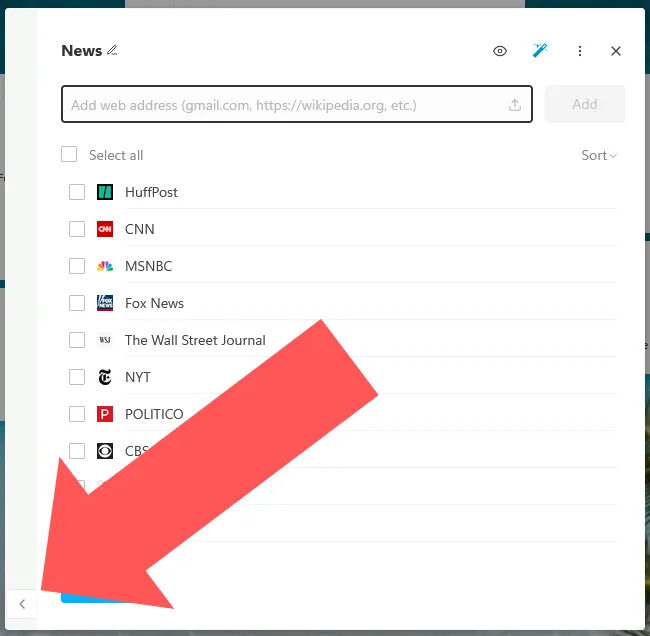
Now you will see your pages and bookmark widgets in one convenient place. If you’re part of a team, you’ll see those pages too.
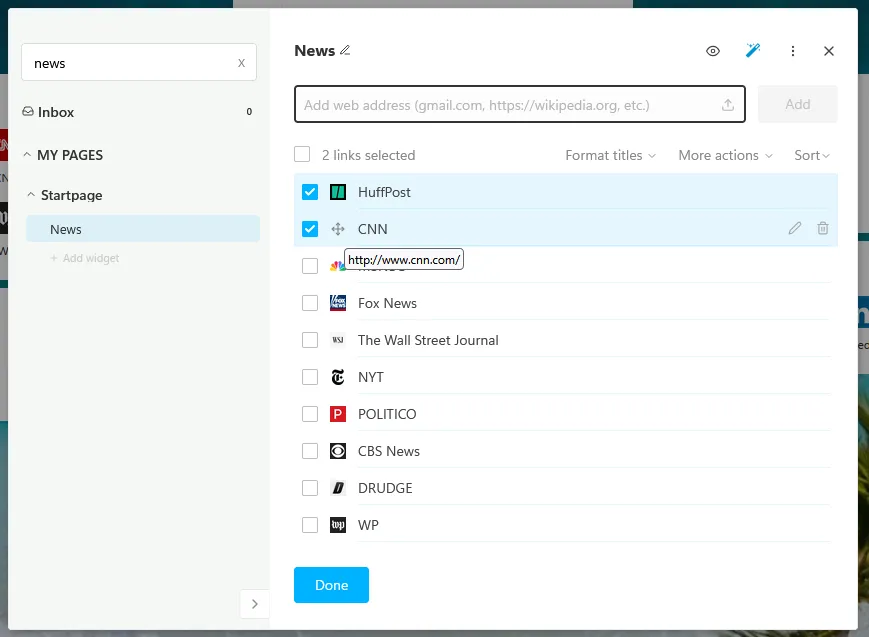
These are the main features of the Widget Explorer:
- Search for any Bookmark widget across all your pages (note: groups are not searchable).
- Drag and drop bookmarks—one, several, or all—into another bookmark widget.
- Apply familiar tools like Format Titles (with AI), More Options (Copy, Move, Delete), and Sort.
- Click the Eye icon to jump back to the full Bookmark widget in the Page view. We will make the destination widget blink briefly, so you know just where to go.
- Open your Inbox from within the Explorer.
To close the Explorer, click the Arrow icon again. Your preference will be remembered. So, if you prefer a simpler view, you won’t see it again unless you choose to.
Introducing the new home for your Inbox
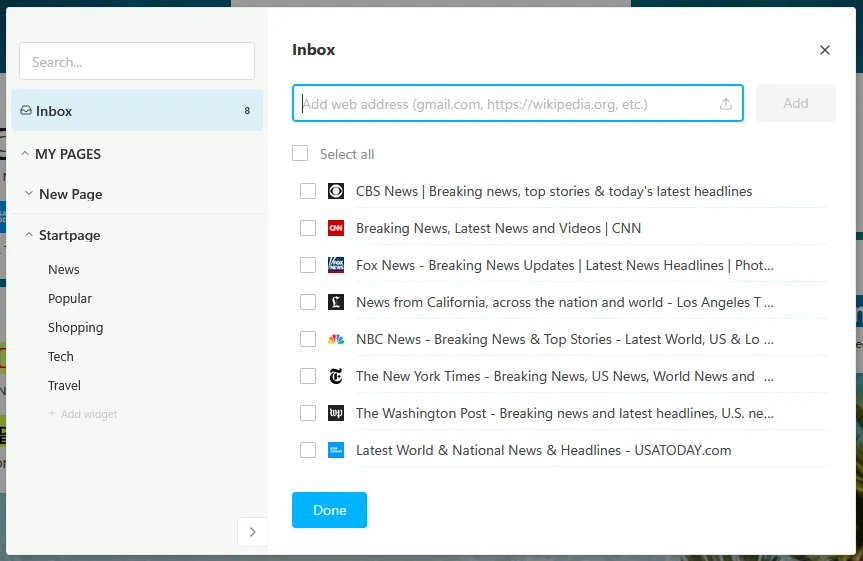
A prominent feature of the new Widget Explorer is the Inbox: your new go-to spot for unsorted bookmarks—a temporary home where your unsorted links go, so you can organize them later. You can immediately see the number of bookmarks that live there.
Inbox Instructions
- In the header of your Start.me page, look for the 🔍Bookmarks – field, and click it (You can also press Crtl-S).
- In the Bookmarks search field, you’ll see the Inbox in the top right corner. The total number of unsorted links are immediately visible. Click this Inbox button to go to the Inbox (You can also press
Crtl-i). - The Inbox will open in a new window in your start page. The Widget Explorer will be expanded, so you can start organizing or cleaning your bookmarks.
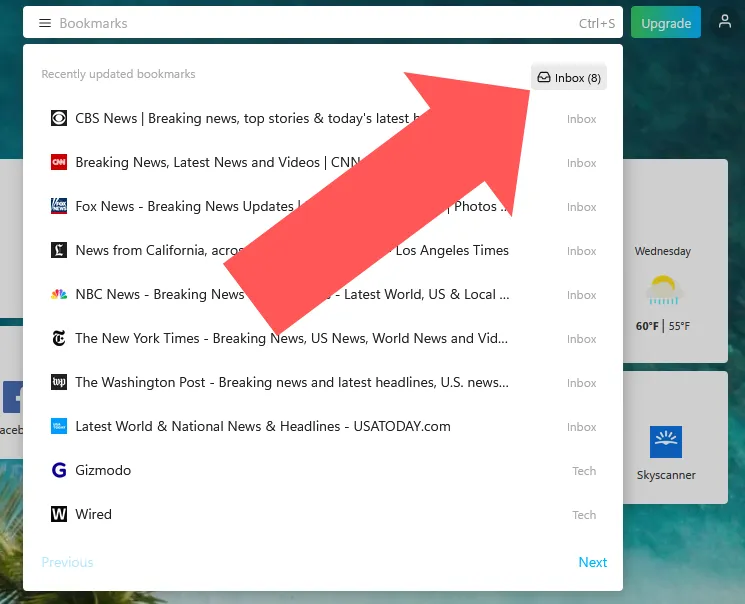
Here are the main features of your Inbox:
- Save first, sort later: You can add bookmarks to your inbox with our browser extensions or the bookmarklet. Once you’ve found a site or page you want to save, just click the icon, and you’ll see it automatically in the Inbox. It’s our one-click solution.
- Drag and drop: Easily move items from the Inbox to the correct widget in the Widget Explorer.
- Searchable: Inbox items also appear in the Search Bookmarks field (unsorted bookmarks have the label Inbox).
We think the Inbox is the perfect way to stay organized without breaking your online flow. Just collect now and curate when it’s convenient.
Widget Explorer for Notes
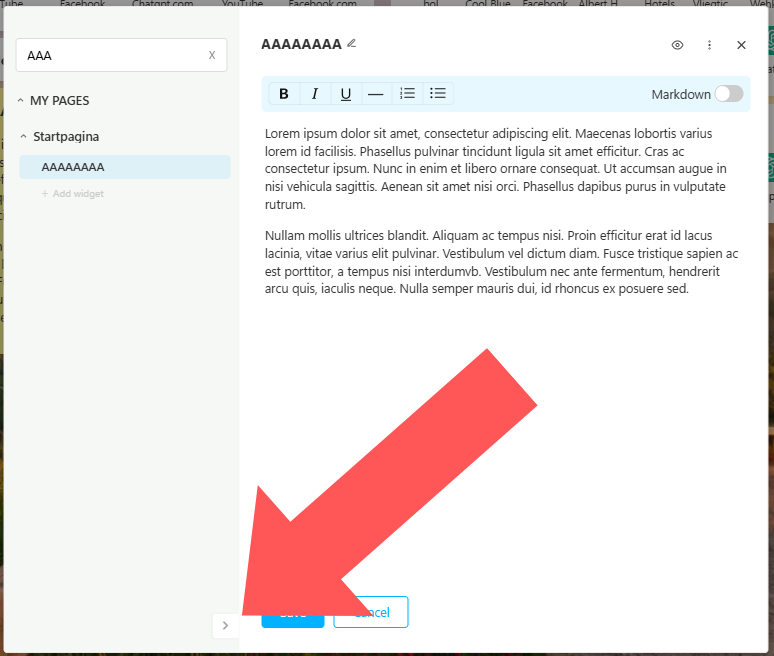
The Widget Explorer is not just useful for Bookmark widgets; you can also use it to quickly edit and switch between your Notes across different pages.
Explore Instructions for Notes
- With your mouse pointer, go to a Notes widget until the Pencil icon appears and click it.
- Now you’ll see the Explorer arrow at the bottom. Click it to expand it. Now you can quickly edit all the Notes on a page. You can also search by title or switch quickly.
- To close the Notes widget explorer, click the arrow again.
Click the X in the top-right corner, Cancel, or outside the Notes widget to return to the page. You can also click the eye icon to go directly to the widget you’ve just edited. We will make the widget blink, so you know just where to go.
What do you think?
The Widget Explorer is the latest addition to the Edit Bookmarks window, designed to streamline how you manage your bookmarks. Format titles, get smart AI suggestions, sort with a click, or apply batch action: all in one clean, distraction-free view. Please check it out, and don’t forget the Inbox, for your unsorted, saved-on-the-fly bookmarks. And the Notes explorer, of course.
Do you like these features? What features would you love to see next? Drop a comment—we’d love your feedback!
19 Replies to “The Widget Explorer Is Here: Organize Bookmarks Faster, Smarter, Better”
Thank you very much. But please do not use the sort function, but add new bookmarks directly (without sorting) at the top. That would also be useful for the existing bookmark widgets.
Noted, Dirmel. You prefer new bookmarks to be added to the top of the widget, not the bottom. I’ll pass on your request!
Love these new additions to Start.me. Makes organizing my bookmarks so much easier! Keep up the good work.
+1 on this innovation!
Thanks, Daniel!
Will do, Jean! And if you have any feature request, do let us know!
Useful…thank you.
Love to be of service, Valerie!
Hello, thank you for this great feature. Regarding the inbox, I have one more suggestion: it would be nice to simply have a bookmark widget where all inbox bookmarks appear.
Hi Dirmel, thanks for commenting! And as for your feature request: we’ve talked about it internally; it’s nice to see that I’m not alone in this wish! I’ll ask the development team to see if we can introduce this soon. Thanks again!
I made a request that the inbox be treated as a free extra page. What happened to that idea?
The inbox widget is a great idea, too. I see that Dirmel called it a bookmark widget, but calling it ‘Inbox Widget’ seems more logical. We should be allowed to rename the instance of the widget, though.
Hi Eugene, thanks for the reminder about your inbox suggestion. I suppose we’re not convinced that the inbox should become a free extra page, as it’s essentially just a list of unsorted bookmarks. A page is usually built with several different widgets. The idea Dirmel talked about hasn’t been decided yet. For now, please note that you’re always just two clicks away from the Inbox: hit the Edit button in a bookmarks widget, and click Inbox. Or click the Search bookmarks field in the header, and click Inbox. Hope this helps!
If you are considering implementing the Inbox widget: It would be great if new bookmarks would always appear at the top of the list there instead of at the bottom as in the previous bookmark widgets.
Thanks Dirmel – we’ll consider this when implementing the Inbox widget and probably offer both a Descending and Ascending sorting order for bookmarks inside this widget.
Your suggestion helps. Thanks.
Mentioning 2 clicks makes it easier to accept.
Wonderful to hear this, Eugene! If you have any questions or suggestions, just let us know. We’re here to help.
It seems to me that Dirmel wants the bookmarks to be sorted properly without requiring a specific action. In other words, the default sort order should be newest first. If you remove a sort button, then the default sort should still be that way.
I agree with him.
That’s correct. I want new bookmarks to be sorted at the top without requiring any special action. In other words, the default sorting should be “newest first.” Of course, I’m happy to keep the option to sort later.
Glad that’s clear now, Dirmel! Stay tuned, and thanks for helping us out. Have a wonderful day!